How to Troubleshoot External Storage Problems Without Losing Important Data
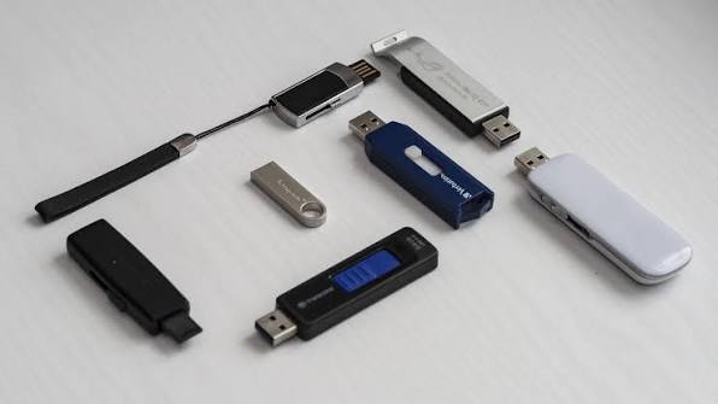
A big part of our lives is stored on external storage devices like USB flash drives, SSDs, memory cards, and many other tools that help us preserve all our crucial data. We’re so used to it that whenever a problem occurs, we feel completely lost and unsettled.
Is our data lost? How to troubleshoot external storage problems in a way that leaves everything we need intact? Fortunately, there are many simple solutions, and if you’re using a Mac, your chances of recovery increase by far.
4 Key Troubleshooting Steps
When an SD card stops working or connecting to a Mac, a lot of users make the mistake of formatting it or continuing to insert it into the same device or port. This can complicate the process and lead to irreparable data loss.
Your external drive data recovery should start more effectively. Don’t panic; remember that your photos and videos are likely safe, and the issue lies with Mac settings or your card reader. Before installing all kinds of repair tools, learn how to fix SD card not appearing on Mac and determine what could have gone wrong in the first place. Plenty of simple methods can solve the problem, and five minutes later, you’ll already have access to your data.
However, sometimes, you need to launch a more comprehensive troubleshooting. We’ll explain how to do that in four steps.
Checking Physical Connections
A lot of external storage issues come down to connection failures. That’s why, as the first troubleshooting step, you need to check all the ports and cables carefully.
- Check your USB cable for signs of physical damage, such as loose fittings, bent connectors, and frayed wires.
- Try connecting your external device to another USB port. These ports fail often, so it’s always worth checking. If you have another laptop nearby, insert your USB or card there.
- Connect the drive directly to your computer, bypassing the USB hub altogether, and see if there is a connection.
If nothing works, disconnect your external devices, give them some time, and move on to the next step.
Verifying If the Operating System Supports the Drive
Establish whether your operating system detects your drive at all. On Mac, check Disk Utility; on Windows, go for Disk Management. Do you see your storage device there?
If the drive appears but has no letter assigned to it, or it’s marked as offline, or you see an error message, then congratulations, you’ve just found your problem. Learn how to fix a USB drive depending on what’s wrong with it.
Common solutions include restarting your device and reconnecting the drive afterward. If you use Windows, update your USB controller and storage drivers.
Scanning for File System Errors
One of the ways to find out how to fix external storage problems involves determining if file system corruption has taken place. This step is relevant if your computer detects your drive but can’t access the files on it.
It doesn’t mean the files are truly gone. Corruption might occur if you disconnected your drive improperly, during sudden power failures, from malware infections, and so on. Troubleshoot it like this:
- Scan the drive for errors by using the built-in disk-checking tools like First Aid in Disk Utility. They will fix the most common problems in an instant. On Windows, you can run CHKDSK, but it’s less effective.
- Before repairing anything, read all the prompts and warnings attentively. It might take some time, but you need to have a clear understanding of what’s going to happen and how this will influence your files.
- Once the repair process starts, don’t just focus on doing something else as you wait. Monitor this process carefully. If you detect any kind of instability, like frequent disconnections, error messages, or abnormally slow performance, pause everything.
The problem might run deeper than a regular file system error. You can attempt another scan through the built-in tools, but if it fails, too, take a break. You’ll need to proceed with the fourth, more complex step instead.
Identifying Potential Hardware Failure
Most experts concur that Macs are superior to most other computers, but even these devices are imperfect when it comes to software and hardware. For example, Apple’s Mac OS X turned out to be more prone to failures than some researchers expected. Software issues are fixed more quickly; if the problem hides in hardware, then the level of the challenge increases.
Storage devices wear out over time, too. You may think that you were being careful, but physical problems may develop anyway, so that’s something you need to prepare yourself for. How to verify that your hardware is failing? Try these steps:
- When your drive is powered on, lean closer and listen for any unusual sounds. If you hear any weird grinding noises or beeping, then you might be having a hardware issue.
- Connect another external storage device to your Mac, even if it’s empty at the moment. If it fails to connect, too, then your Mac’s USB hardware might be at fault.
- Check if your drive powers up the way it should when you connect it to your Mac. If there are no signs of activity, the power system or internal components might be compromised.
- If you manage to get to the stage of transferring the files, but disconnections keep interrupting the process, the problem might lie with internal hardware instability.
- If file transfers start but keep failing because of freezes, or they take hours and hours when 20 minutes would suffice, it’s also a sign of a potential hardware failure.
Consider all recent events that might have damaged your storage device or your Mac. Were there any power surges? Have you brought your devices into an excessively moist environment, or did you drop any of them?
If none of the described methods work, you might need to seek professional assistance. Find out about your options; most likely, you’ll be able to retrieve your data.


